
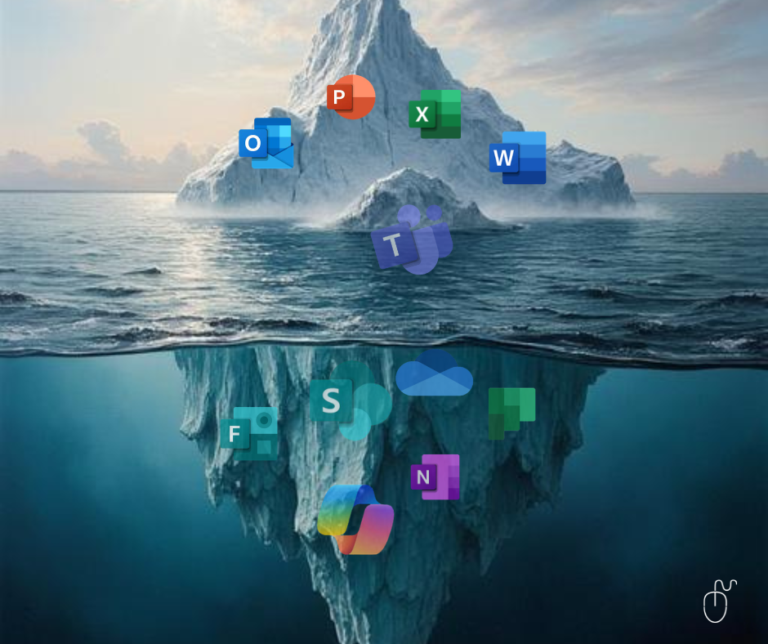
Ask anyone in your office what’s in Microsoft 365, and you’ll get a pretty consistent answer:
Word, Excel, Outlook, and PowerPoint.
Maybe Teams, too, because it showed up a few years ago and hasn’t gone away. People are using it for calls and quick messages, even if the channels still feel a bit mysterious.
And that’s usually where the list ends.
I hear this every single week in my training sessions.
I’ll ask a room of ten people what they think Microsoft 365 includes, and I get the Big Four, a hesitant mention of Teams, and then a lot of blank looks.
Which is completely understandable, because nobody sat them down and told them otherwise.
Here’s what most people don’t know: depending on your organization’s plan, you also have access to OneDrive, SharePoint, Planner, OneNote, Forms, and in many cases, Microsoft Copilot AI.
All included.
All ready to use.
All sitting quietly in your subscription right now.
Most organizations use about 20% of what they’re paying for. The other 80% is just… there. Waiting.
That’s not a technology failure.
It’s a training gap.
Someone in IT turned everything on, and everyone else was expected to figure it out from there.
Most people didn’t, and honestly, why would they?
So let’s fix that.
Here’s the plain-language version of what’s actually in your Microsoft 365 subscription.
Before we go any further, I want to tackle the one that causes the most confusion, because I get this question more than almost any other:
“What’s the difference between OneDrive and SharePoint? And which one are we supposed to be using?”
It’s a completely fair question.
On the surface they look similar, both store files, both live in the cloud, both are part of Microsoft 365.
But they serve very different purposes, and mixing them up is one of the most common sources of file chaos I see in organizations.
That last point matters more than most people realize.
I’ve worked with organizations that lost years of institutional knowledge because critical files were saved to a personal OneDrive, or worse, on someone’s desktop, and walked out the door when that person retired.
SharePoint exists specifically to prevent that.
Understanding the difference between these two tools alone is worth the price of a training course.
It’s that fundamental.
Teams is in its own category, because most people are using it, just not much of it.
Calls and video meetings?
Yes.
Quick messages back and forth?
Yes.
The occasional file shared in a chat window that nobody can find again later?
Definitely yes.
But channels?
File organisation within Teams?
The way Teams connects directly to SharePoint in the background, so that every file shared in a channel is actually living in SharePoint, searchable and organized?
The Planner tab you can add to any channel to track your team’s tasks?
The meeting notes that link straight to OneNote?
That’s where most people’s Teams knowledge stops cold.
And I don’t say that as a criticism, I say it because I’ve watched capable, smart professionals sit down with Teams for the first time and realize they’ve been using a commercial kitchen to make toast.
Teams isn’t a video call app with a chat window.
It’s the front door to almost everything else in Microsoft 365.
When you understand how Teams actually works; channels, file structure, connections to SharePoint and Planner, the rest of Microsoft 365 starts to make much more sense.
It’s why Teams is always where I recommend people start.
And then there’s everything else, the tools that are genuinely useful, genuinely included in most Microsoft 365 plans, and almost universally unknown to the people paying for them.
Planner is a visual project management tool built right into Microsoft 365.
Create tasks, assign them to people, set due dates, track progress, all in a shared board that connects directly to Teams.
I work with organizations that are paying for external tools like Trello or Asana without knowing they already have something comparable sitting in their subscription.
If your team is still managing tasks through email threads and hopeful follow-ups, Planner is worth your attention.
OneNote is a digital notebook, searchable, shareable, and connected to Teams and Outlook.
Meeting notes, project documentation, staff manuals, reference materials.
I’ve helped teams build what I call an ‘organizational memory’ in OneNote: a living notebook that means when someone retires or moves on, their knowledge stays.
It’s one of the most underused tools I’ve ever come across, and one of the most valuable once people actually start using it.
Need to collect information from staff?
Run a quick feedback survey?
Build a simple intake form?
Forms handles all of that, no third-party subscription required, no IT setup, just a tool that’s already there.
Results flow straight into Excel.
I can’t count the number of times I’ve mentioned Forms in a training and watched someone quietly close the tab for SurveyMonkey they had open in the background.
If your organization’s Microsoft 365 plan includes Copilot, and many do, you have an AI assistant built directly into Word, Outlook, Teams, and Excel.
It can draft emails, summarise meetings, generate content, and analyse data.
A lot of organizations have this activated and genuinely have no idea.
If you’re not sure whether you have it, it’s worth checking with your IT contact.
Here’s an honest look at the complete Microsoft 365 toolkit, not the marketing version, but the real one, with a frank note about where most teams are with each tool.
If you recognize your organization in that third column, you’re in good company.
App | What it actually does | Where most people are |
Word | Word processing, documents, letters, reports | Using it well. Maybe not using the Templates and advanced features as much as they could. |
Excel | Spreadsheets, data, calculations | Using it for years. Most rate themselves as advanced. Most are missing shortcuts they’d use every single day. |
Outlook | Email, calendar, tasks | Using it daily, but often not as efficiently as they could. |
PowerPoint | Presentations and slide decks | Using it, with varying results. |
Teams | Communication, meetings, channels, file sharing | Using it for calls and chat, maybe 10% of what it can do. |
OneDrive | Your personal cloud storage, files accessible from anywhere | Some use it. Many don’t know it’s different from SharePoint. |
SharePoint | Your organization’s shared file library and intranet | Often recreating the old shared drive inside SharePoint, folders within folders within folders, without realizing there’s a better way to organize and find files entirely. |
Planner | Visual task boards for team projects and to-do lists | Almost no one knows this exists. |
OneNote | Digital notebook for meeting notes, projects, reference | A few use it. Most have never opened it. |
Forms | Surveys, quizzes, data collection, built right in | Very rarely used, despite being genuinely useful. |
Copilot AI | AI assistant built into Word, Outlook, Teams, and more | Most people don’t know they may already have access. |
YOU ALREADY HAVE THE TOOLS
Let me show you how to use all of them,
not just the ones you already know.
Self-paced · Jargon-free · Three Month’s Access
No IT background required. Start today.
Now that you have the full picture, my honest recommendation is this: don’t try to learn everything at once.
That’s a fast path to overwhelm, and it’s not how any of this needs to work.
Instead, ask yourself one question: which of these tools, if I actually understood it, would make the biggest difference to my workday right now?
For most people, the answer is Teams, because understanding it properly unlocks everything else.
For others, it’s SharePoint, because the file situation has become genuinely expensive.
For some, it’s simply Outlook, because the inbox has got completely out of hand.
Start there.
Learn one tool properly.
Apply it.
Then add the next one.
At the 365 Learning Hub, every course is self-paced, jargon-free, and built for professionals who have been using Microsoft 365 for years and are only now realising how much has been sitting there, untouched, the whole time.
No live sessions to keep up with.
No prior technical knowledge required.
Just practical training that starts where you actually are.
You’re not behind. You just haven’t been shown the full picture. Now you have it.
Need to learn more about the Microsoft 365 apps, check out this BLOG that explains each app in-depth.